
Master Your Map: How to Claim Your Apple Business Connect Page and Delegate Access
In the local SEO space, Google has long been the undisputed heavyweight champion. But a shift is happening. With Apple Business Connect, Apple has transformed its mapping service from a basic directory into a rich, interactive brand tool.
For multi-unit brands and local restaurants alike, Apple Maps is no longer a "nice-to-have"—it’s an important touchpoint. Whether a customer uses Siri to find "tacos near me" or browses on their MacBook, your Apple Business Connect profile serves as your digital storefront.
However, before you can start posting "Showcases" or updating your holiday hours, you have to get past the gatekeeper: the claiming and delegation process.
In this guide, we’ll walk you through exactly how to claim an Apple Business Connect page and, more importantly, how to delegate access to partners so you can scale your local marketing without losing your mind.
Why Apple Business Connect Matters in 2026
Apple Maps is used by millions of iPhone users daily. Unlike traditional directories, Apple Business Connect allows you to:
- Create Showcases: Highlight limited-time offers or new menu items.
- Customize Action Buttons: Let users book a table or order delivery directly from the map.
- Analyze Performance: Gain insights into how people find and interact with your brand.
If you haven’t claimed your page, you’re leaving your brand’s reputation up to the "best guess" of the algorithm.
Part 1: How to Claim an Apple Business Connect Page
Claiming your business is the first step in taking ownership of your digital presence. Here is the step-by-step process.
Step 1: Sign in with an Apple ID
Go to the Apple Business Connect website. You will need to sign in with an Apple ID.
Pro Tip: We highly recommend using a company-specific Apple ID (e.g., marketing@yourbrand.com) rather than a personal one. This ensures that if a team member leaves the company, you don’t lose access to your listings.
Step 2: Search for Your Business
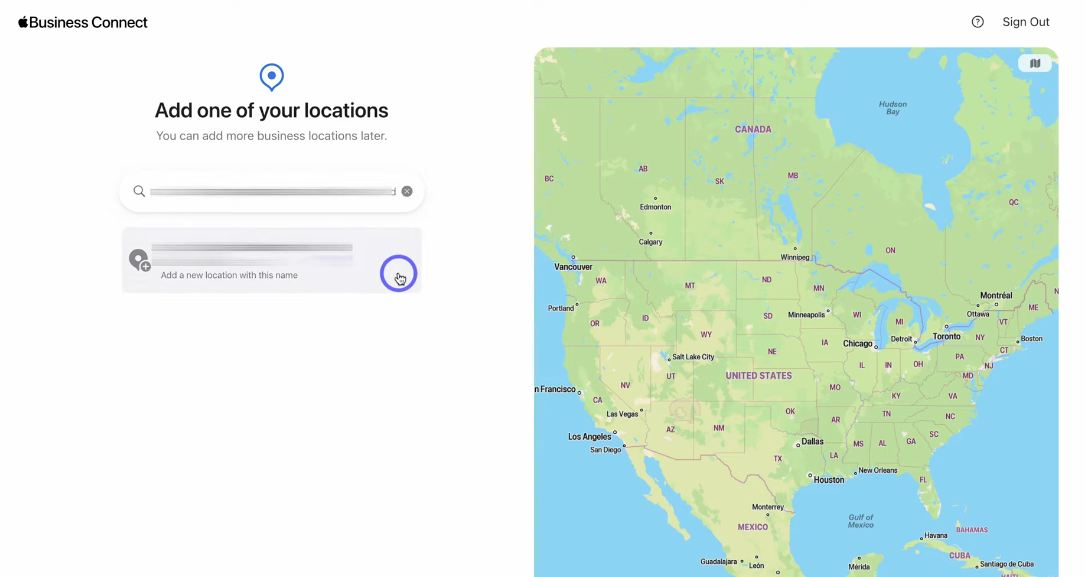
Once signed in, use the search bar to find your business location. If your business doesn’t appear, you’ll have the option to "Add a new location with this name."
Step 3: Add Business Details
You will need to fill out basic information like address, business category, phone number, open status and business hours. If you aren’t open yet, you can select “Opening Soon” and select your opening date.
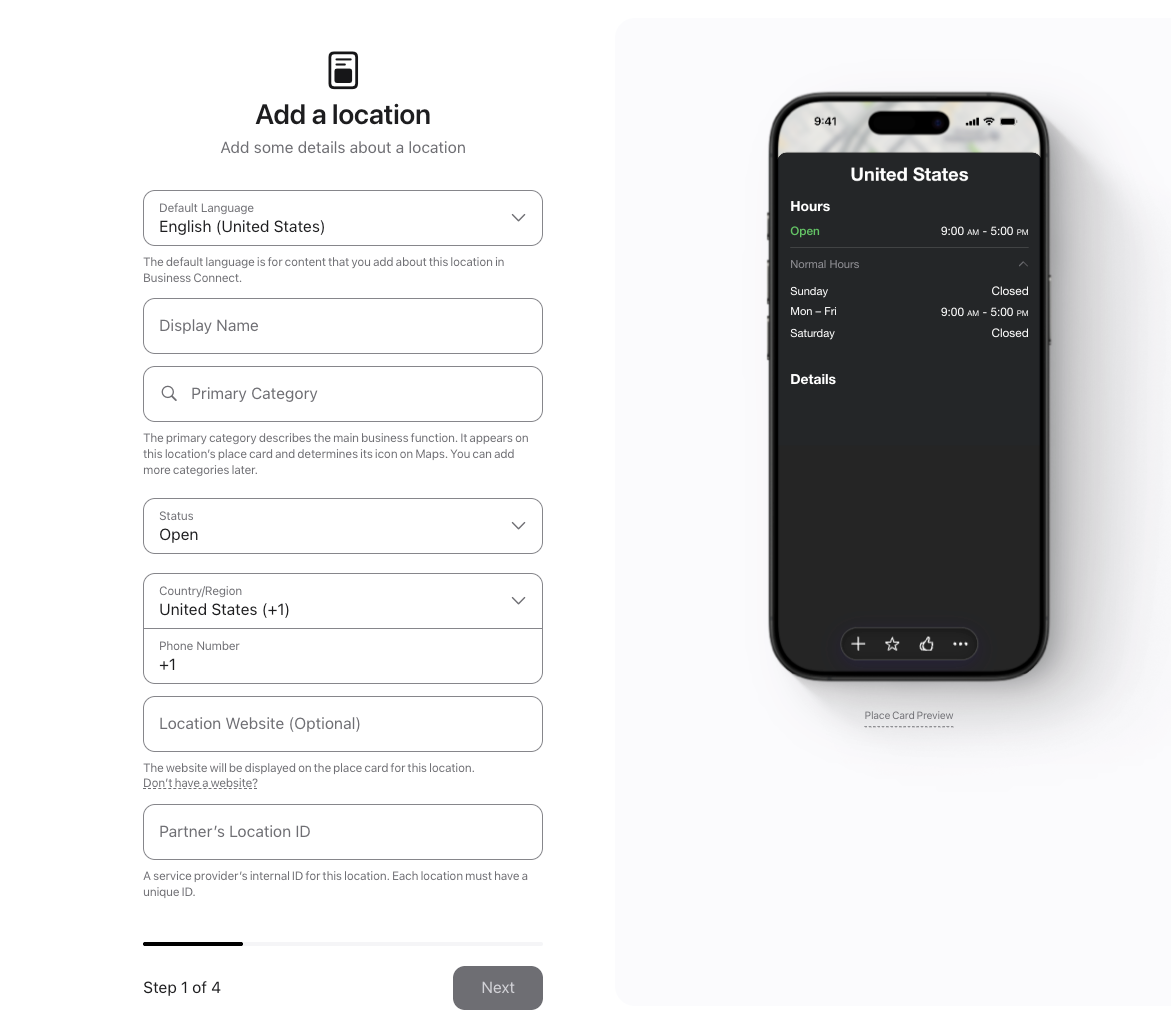
Small tip: When adding your address, you must select the address from the drop-down options for Apple to recognize the address and change the pin.
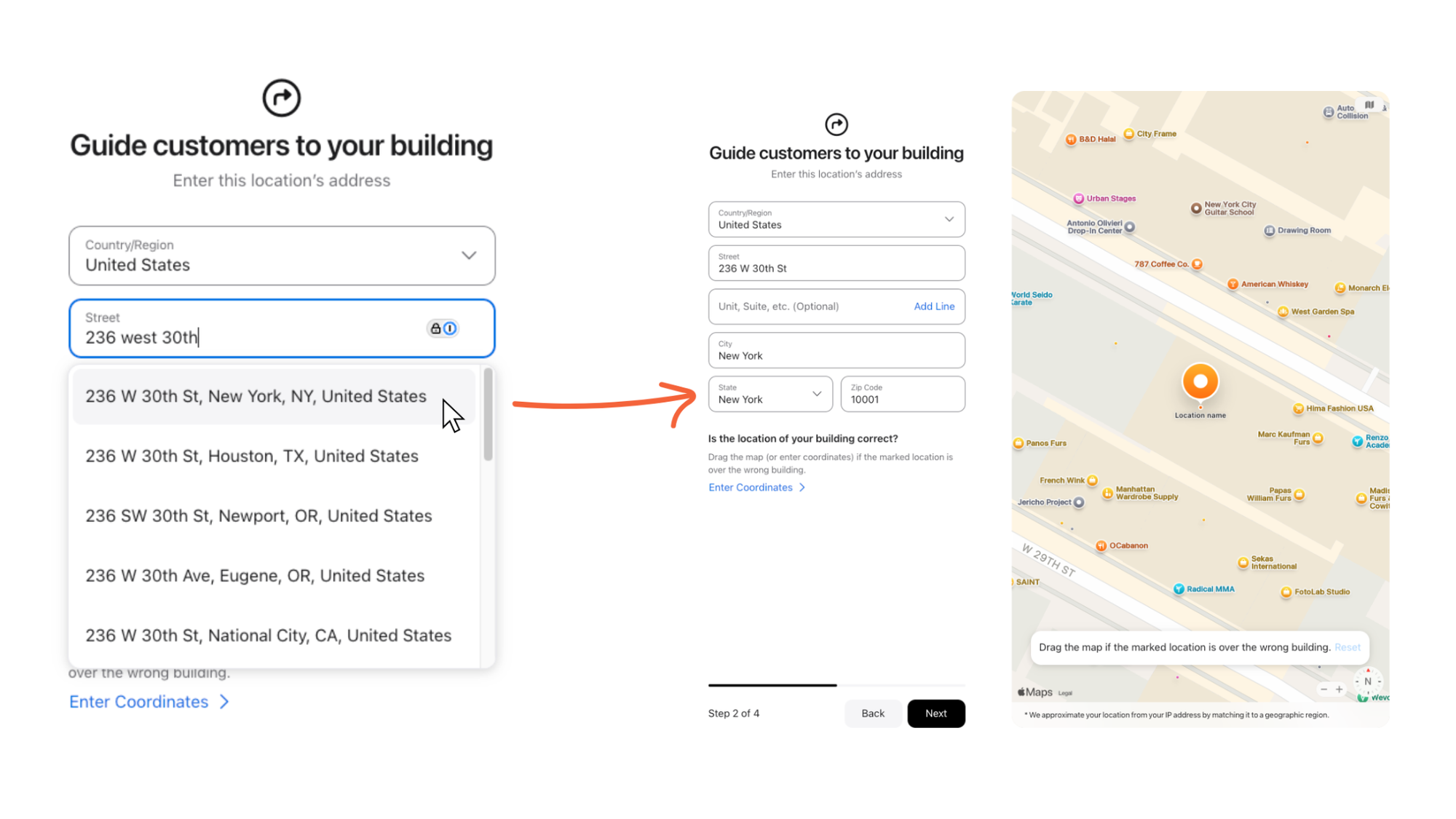
After you complete the setup process, you will move on to the verification process.
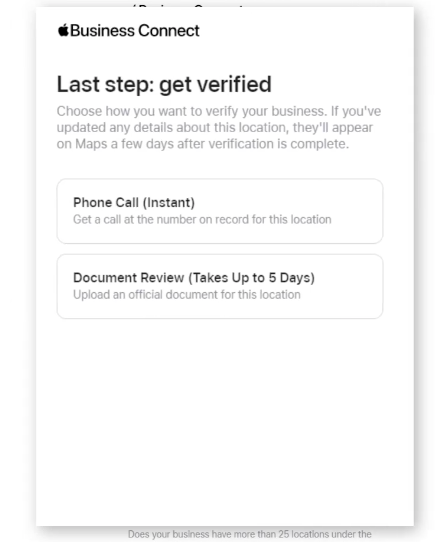
Step 4: Verify Your Identity and Ownership
Apple takes security seriously. To verify you actually own the business, they may use:
- Phone Verification: You receive a code via the business phone number listed.
- Document Upload: You may need to upload a lease, insurance policy, or utility bill that clearly shows the business name and address.
Step 5: The Waiting Game
Once submitted, Apple’s team will review your claim. This usually takes anywhere from a few days to a week. You’ll receive an email notification once your claim is approved.
If you still have questions, check out this Apple help article.
Part 2: Delegating Access for Apple Business Connect
Once you’ve claimed your page, you might realize that managing every update yourself is a full-time job. This is where delegating access for Apple Business Connect becomes a lifesaver.
Whether you are working with an agency or using a local SEO and listings partner like Marqii, you don’t want to hand over your primary Apple ID credentials. Instead, you "delegate" access.
How to Invite a Partner
- Log in to your Apple Business Connect dashboard.
- Navigate to the Company page on the left sidebar, then select the Access tab
- Select Share Access.
- Enter the Partner ID. (For example, if you were working with Marqii, our team would provide you with a specific Partner ID to enter here).
Setting Roles
You can choose the level of access your partner has. For most marketing partners, "Manager" or "Editor" access is sufficient to update photos, hours, and Showcases without giving them the power to delete the entire account.
Part 3: Troubleshooting Common Verification Hurdles
Claiming a business isn't always a walk in the park. Here are the most common issues we see and how to fix them.
1. The D-U-N-S Number Dilemma
Apple often uses the Dun & Bradstreet (D-U-N-S) database to verify that a business is a legal entity. If your D-U-N-S info is outdated or doesn't exist, your Apple claim might be rejected.
- The Fix: Search for your business on the D&B website. If it’s missing or incorrect, you’ll need to update it there before Apple will approve your claim.
2. "Location Already Claimed"
If you try to claim a location and find it’s already owned by someone else, it was likely claimed by a former employee or a previous agency.
- The Fix: Apple provides a "Request Access" flow. If the current owner doesn't respond within a set timeframe, Apple can intervene to help you regain control.
3. Phone Verification Failing
If your business has an automated phone tree (e.g., "Press 1 for hours"), Apple’s automated verification call will fail.
- The Fix: Choose the Document Upload method instead. Provide a clear, high-resolution scan of an official document.
Callout: Managing Multi-Unit Brands
If you have 25, 50, or 500 locations, claiming them one by one becomes impossible.
For enterprise brands, Apple offers an Enterprise/Brand account path. This allows for bulk uploads via CSV or integration via API. You must have at least 25 locations and use a managed Apple account instead of a personal Apple ID for this option. If you find yourself in this category, delegating access to a partner becomes even more vital, as they can manage the "Bulk" status and ensure your data remains synchronized across all locations simultaneously.
Take Control of Your Local Presence
Claiming your Apple Business Connect page is the "low-hanging fruit" of local SEO. It ensures that when a customer looks for you on their iPhone, they see the right hours, the right photos, and a clear path to purchase.
By delegating access to trusted partners, you can ensure your listings stay updated in real-time without adding another task to your daily to-do list.
Want to skip the manual work?
At Marqii, we help brands take the headache out of local listings. From claiming your Apple profiles to syncing your menus and hours across every major map and directory, we do the heavy lifting so you can focus on running your business.
Schedule a demo with the Marqii team today to see how we can streamline your Apple Business Connect strategy and help you manage your listings.