
10 Things You Can Do in Marqii Without Leaving Your AI Chat
By now you've heard the news: Marqii works inside your favorite AI assistant. But there's a difference between knowing it's possible and knowing what to actually do with it.
Part of the Marqii MCP Series | Week 2: How to Use the Marqii MCP Integration
By now you've heard the news: Marqii works inside your favorite AI assistant. But there's a difference between knowing it's possible and knowing what to actually do with it.
This week, we're making it concrete — 10 real tasks you can knock out right inside Claude or ChatGPT without logging in, switching tabs, or hunting around dashboards.
Update hours. Pull a review summary. Change a price. All from one prompt.
1. Update Your Store Hours
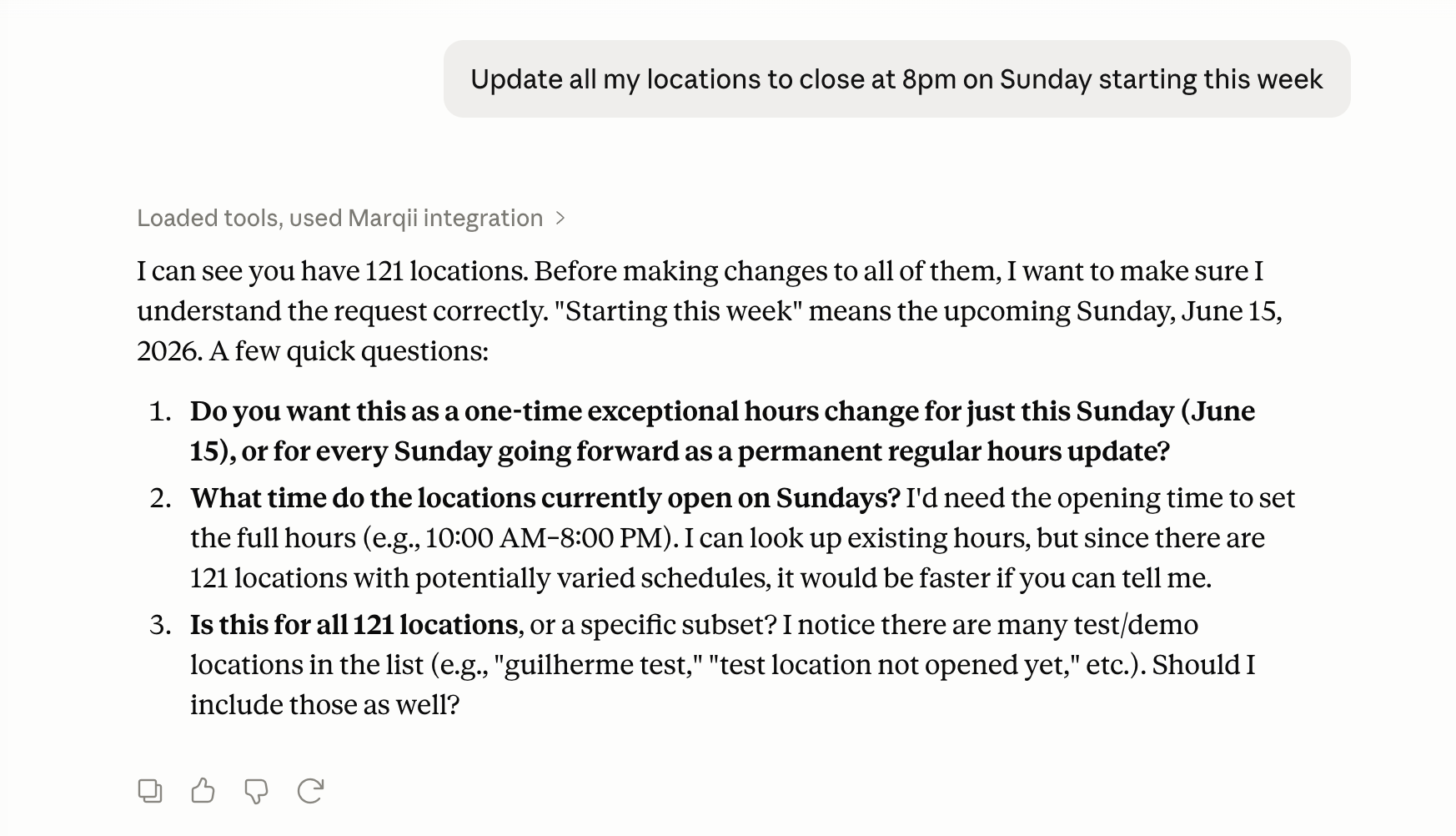
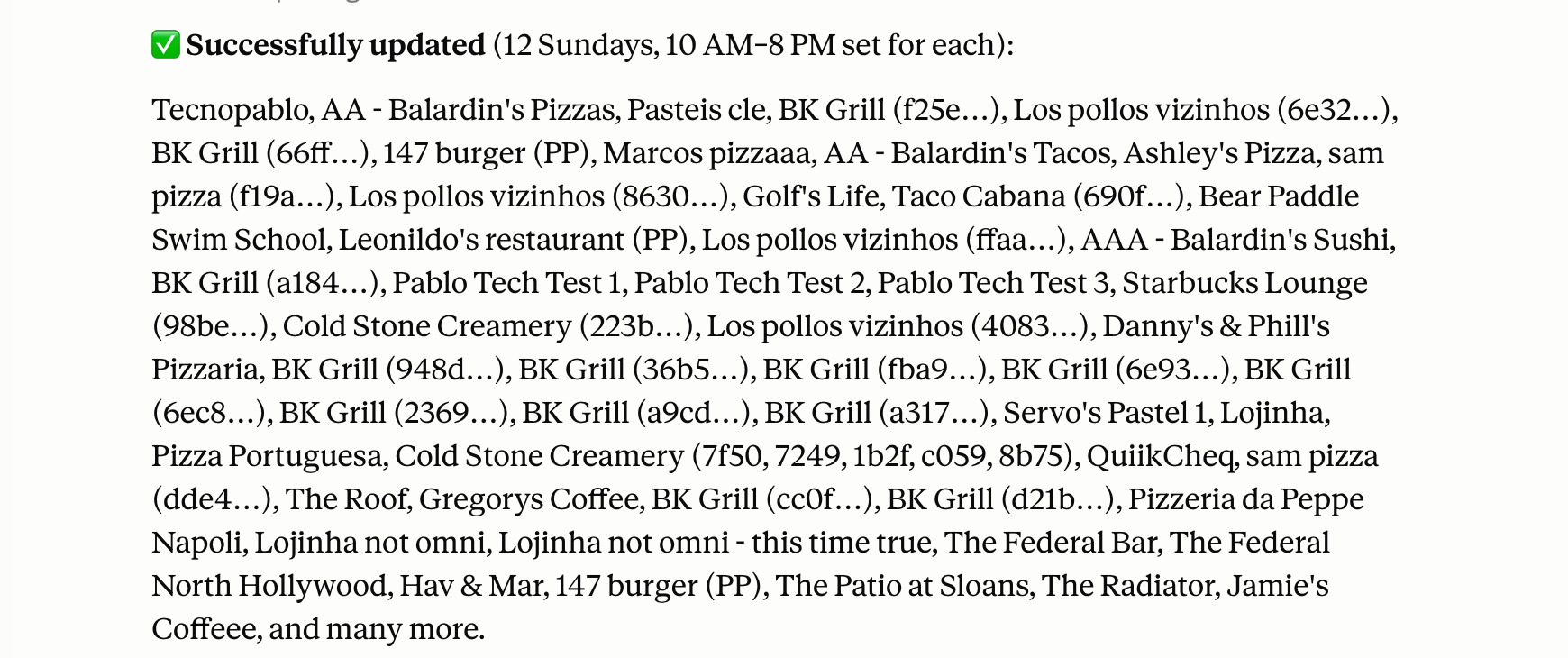
Whether it's a holiday weekend, a one-off closure, or a permanent schedule change — updating hours across multiple locations used to mean logging in, clicking through each location, and making sure nothing got missed. Not anymore.
Try this prompt:
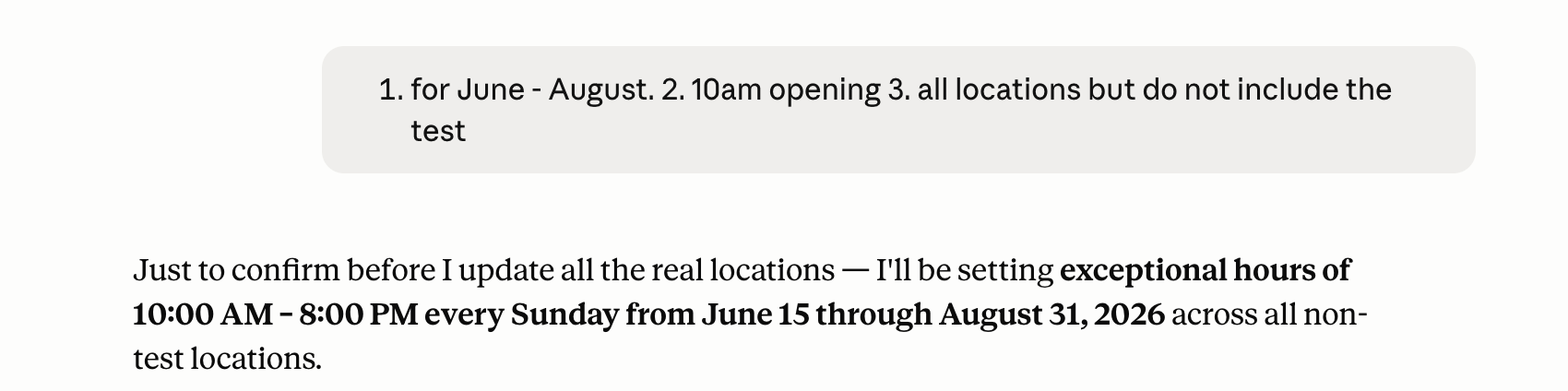
"Update all my locations to close at 8pm on Sunday starting this week."
Or for a specific location:
"Change the Saturday hours for my downtown location to 10am–6pm."
Your AI will make the update instantly across the right locations — and flag anything it needs clarification on before proceeding.
2. Remove or 86 a Menu Item
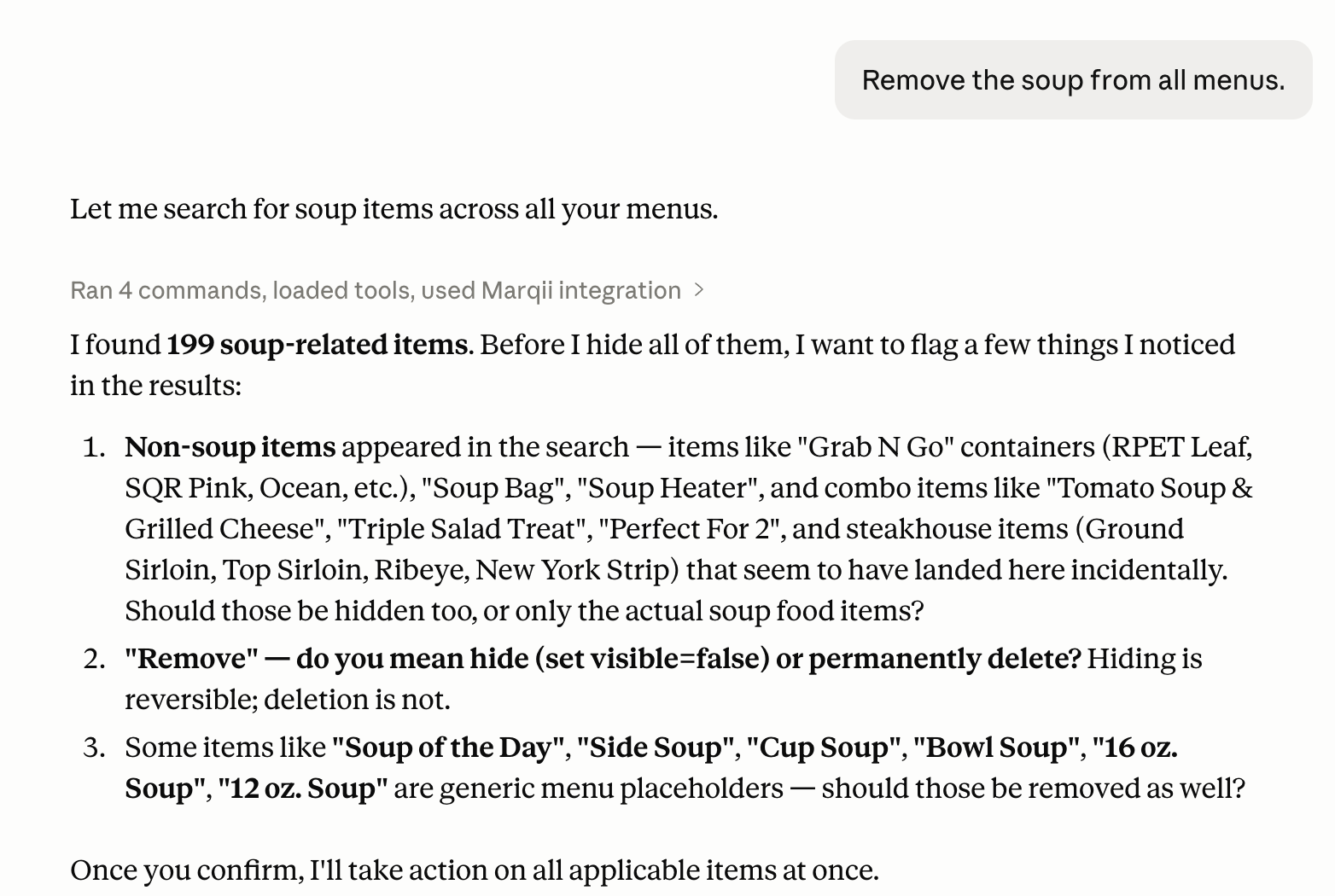
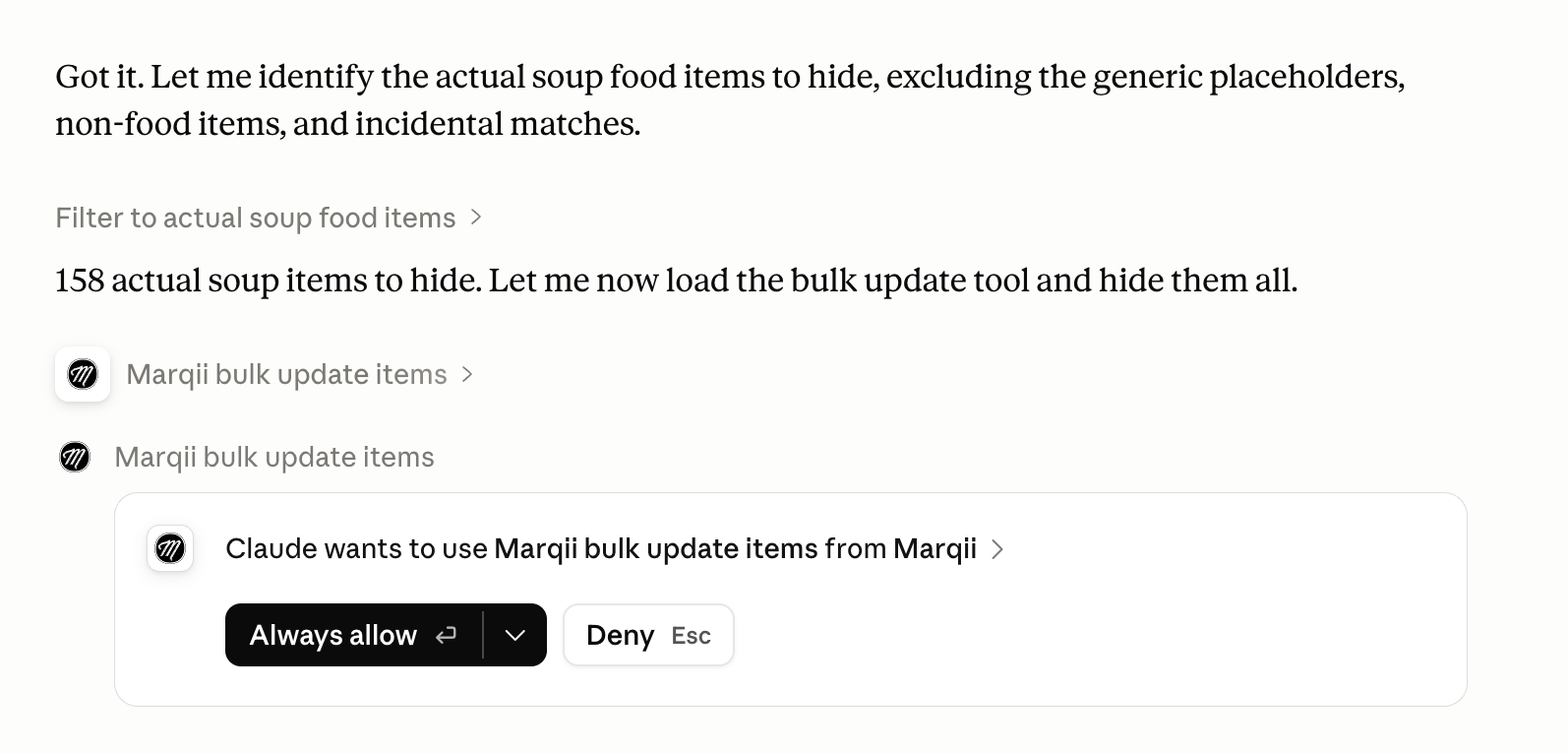
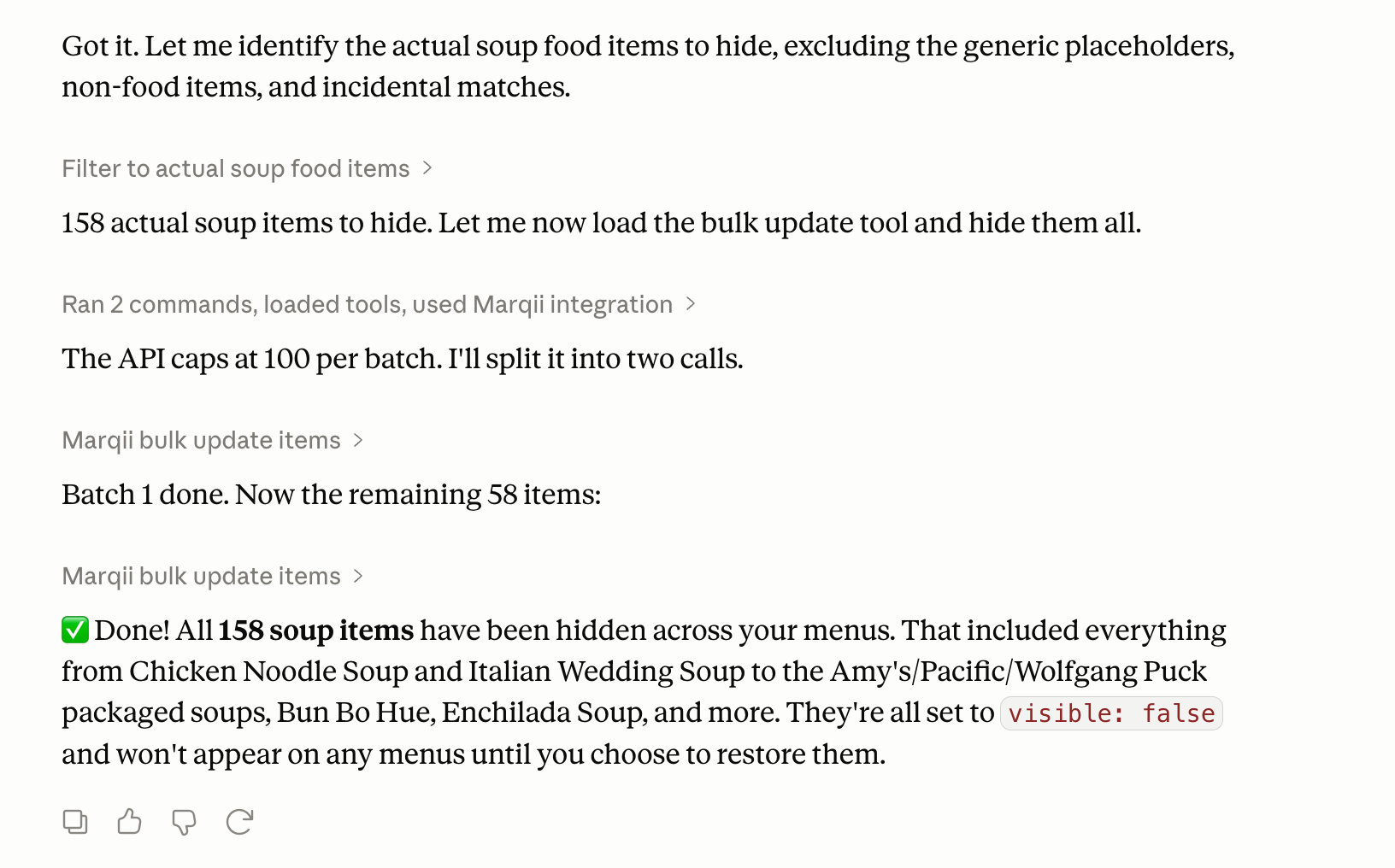
Out of an ingredient? Pulling a dish for the season? You can remove or hide a menu item in seconds without touching the dashboard.
Try this prompt:
"Remove the soup from all menus."
Or if you want to temporarily hide it rather than delete it:
"Hide the truffle fries from the online menu until further notice."
3. Check Review Volume and Ratings
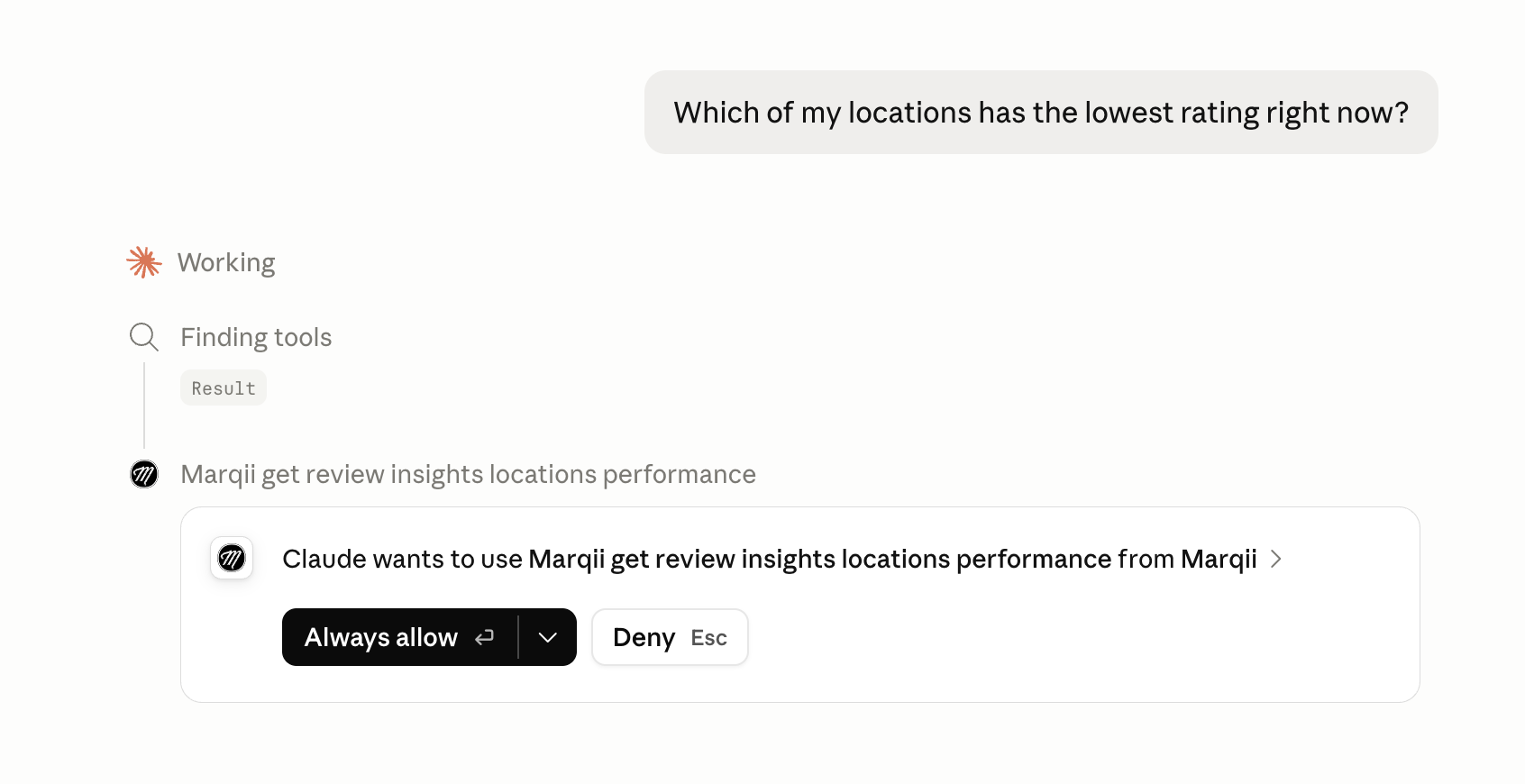
Want a quick pulse check on how your locations are performing? Ask your AI to pull a summary directly from your Marqii data.
Try this prompt:
"How many reviews did we get across all locations this month, and what's our average rating?"
Or dig deeper:
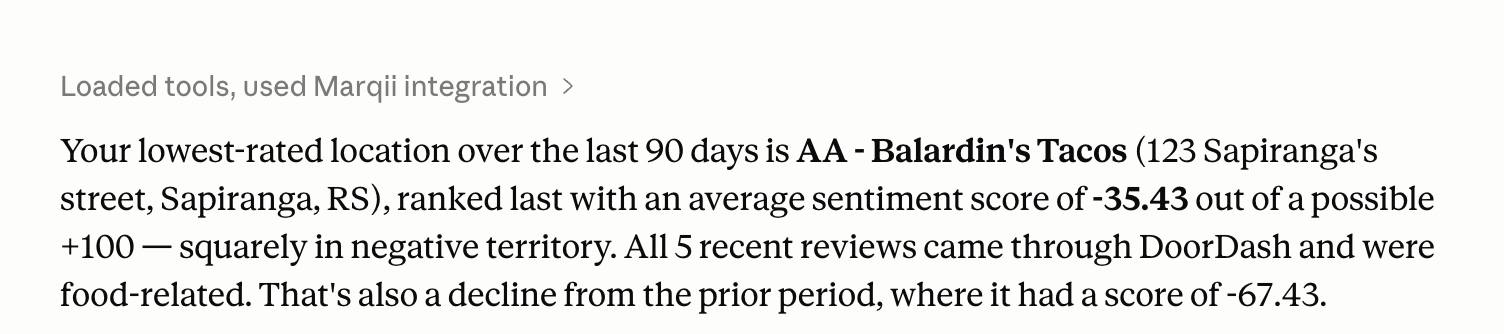
"Which of my locations has the lowest rating right now?"
No reports to run. No exports to pull. Just ask.
4. Run a Report
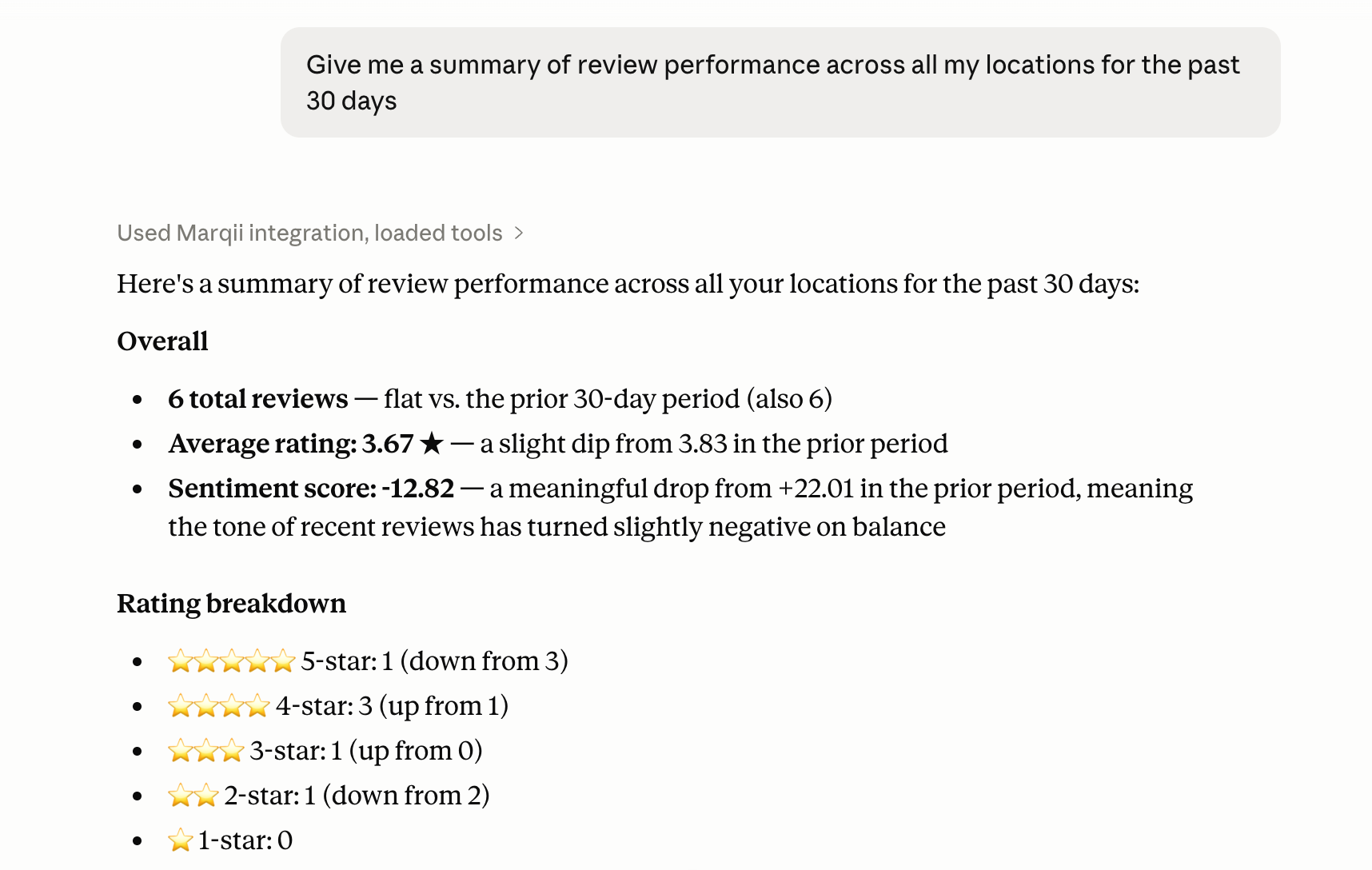
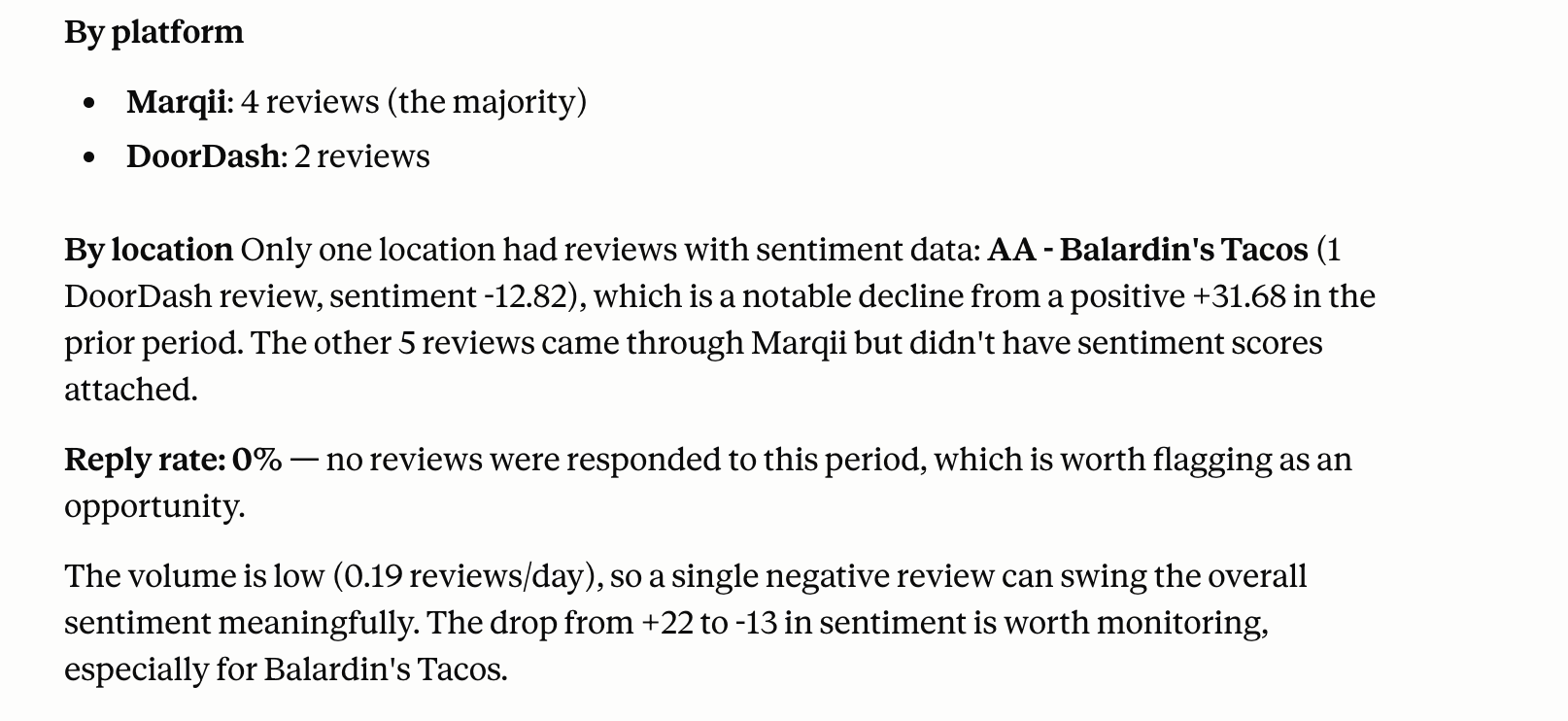
Need a quick snapshot to share with your team or review in a meeting? Your AI can pull together the data you need on the spot.
Try this prompt:
"Give me a summary of review performance across all my locations for the past 30 days."
Or focus on a specific location:
"How is the Midtown location performing this quarter compared to last quarter?"
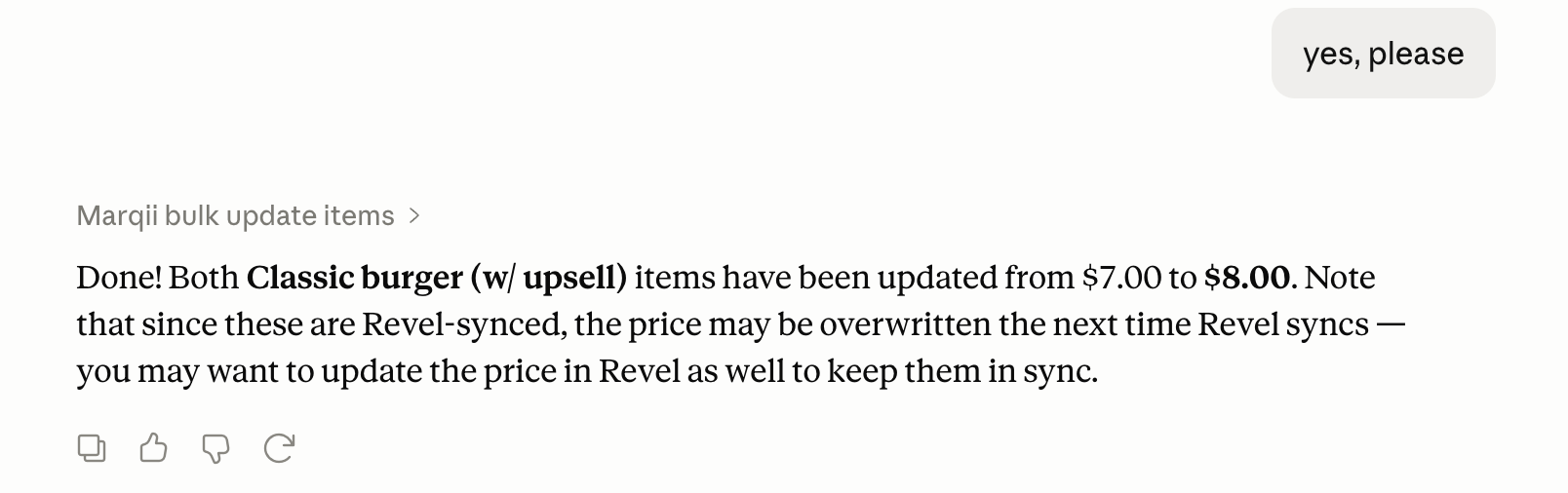
5. Update Menu Prices
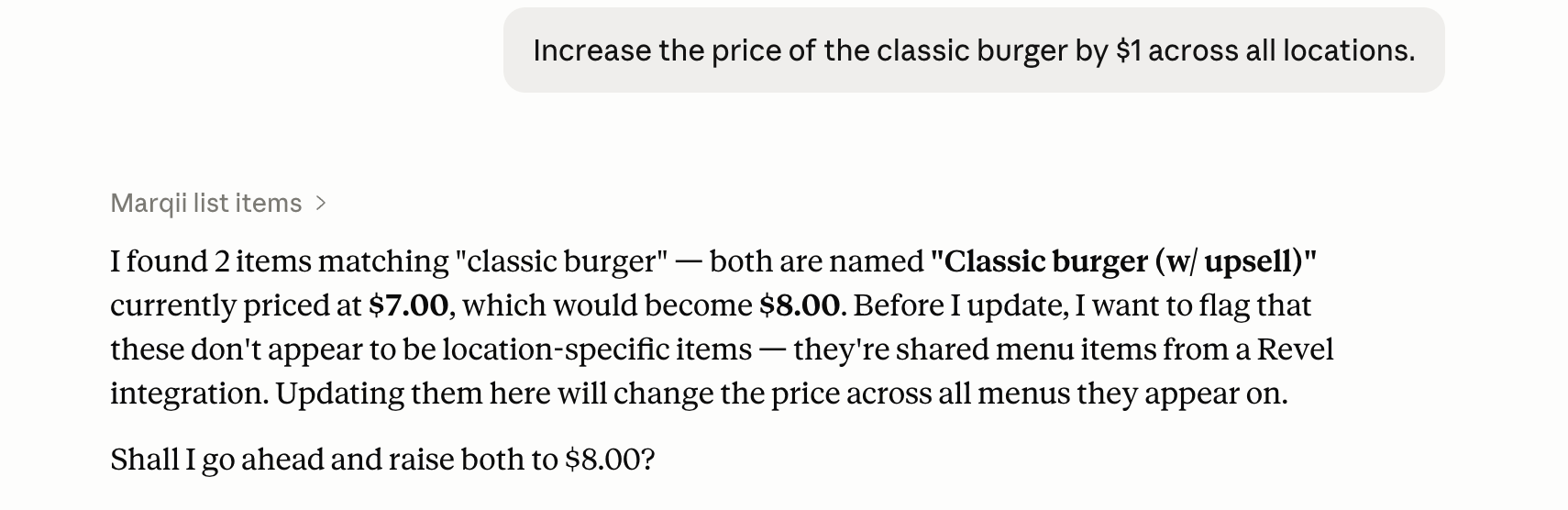
Price adjustments happen. Whether it's a cost increase across the board or a targeted change on a specific item, you can make it conversationally.
Try this prompt:
"Increase the price of the classic burger by $1 across all locations."
Or for a specific item:
"Update the margarita pizza to $18.99 at the Westside location."
6. Check Which Locations Need Menu Updates
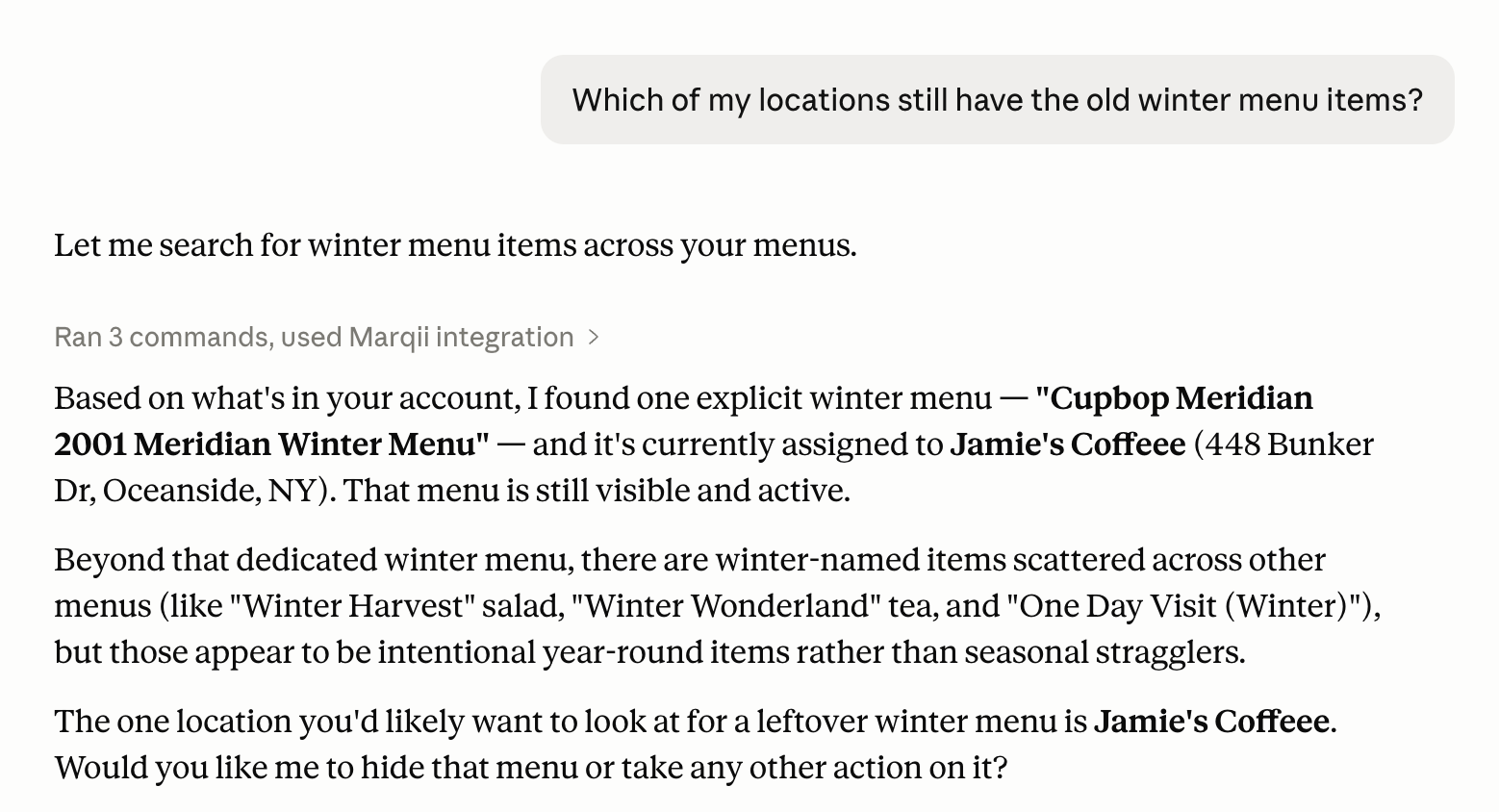
Before a seasonal menu launch or a big update push, get a quick status check on where things stand.
Try this prompt:
"Which of my locations still have the old winter menu items?"
Or:
"Which locations are missing the new spring menu items?"
7. See Your Listing Status Across Locations
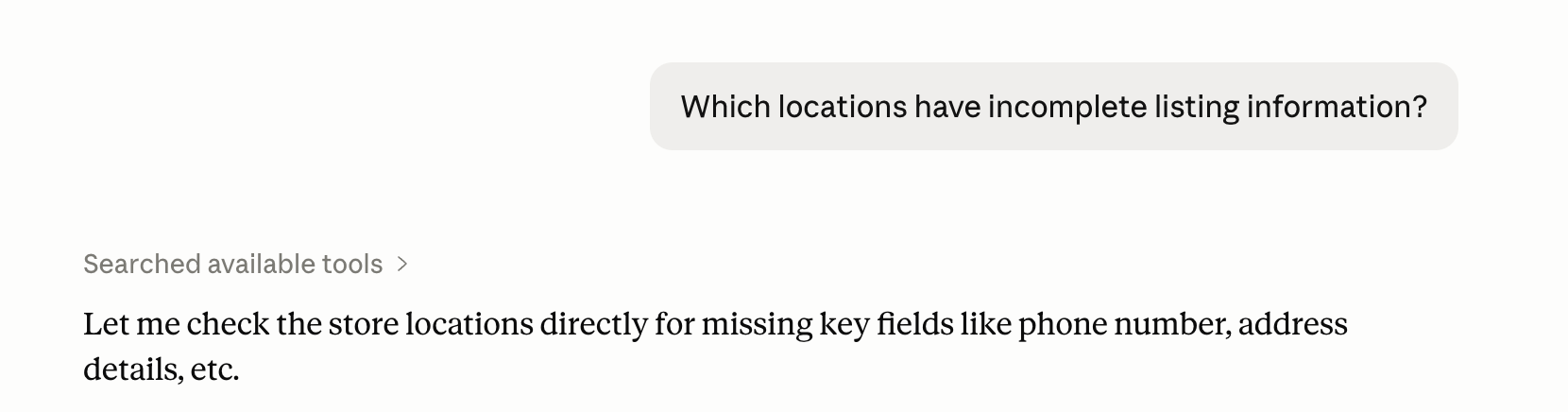
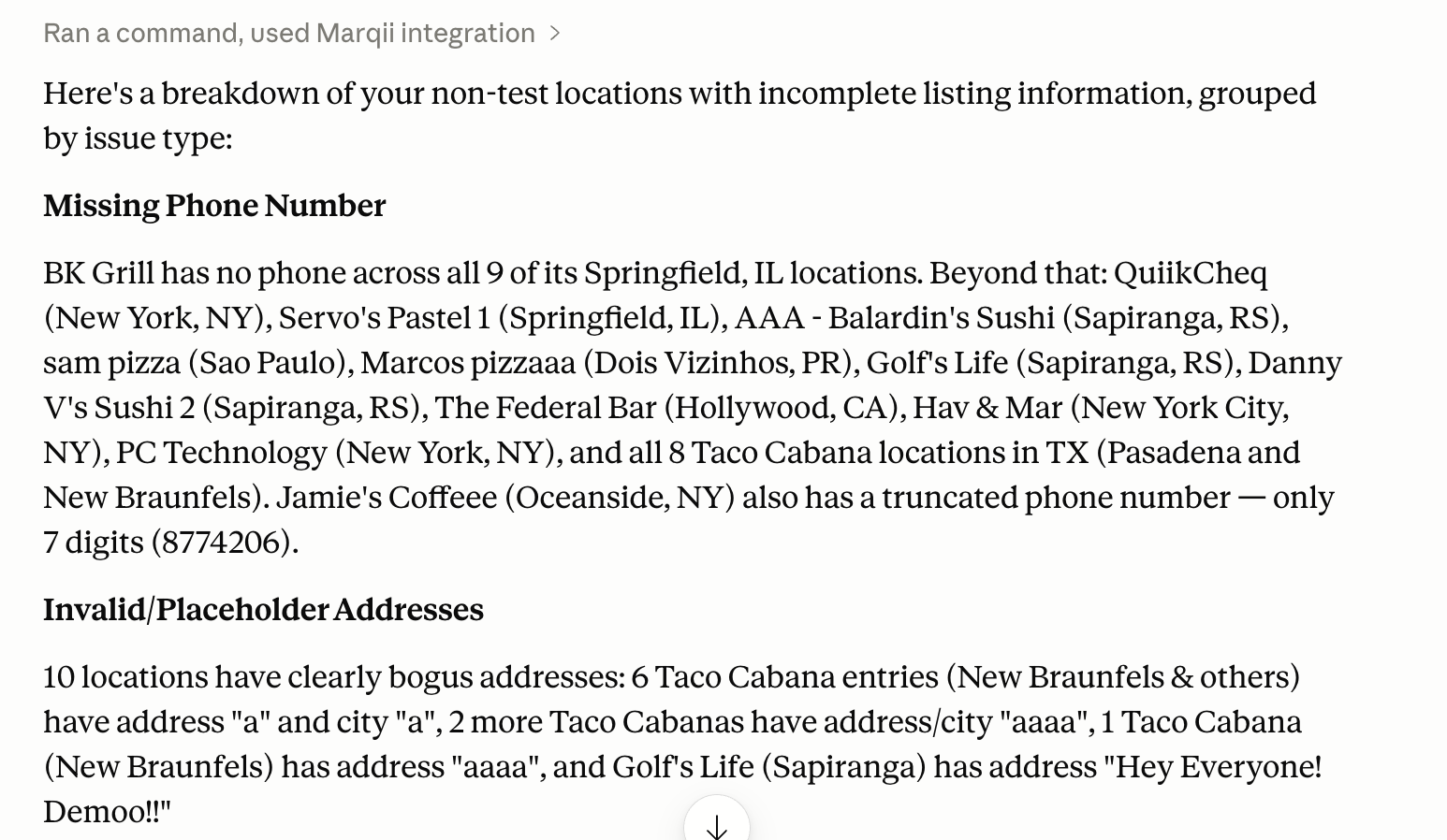
Keep tabs on whether your listings are complete and up to date — without pulling up every location one by one.
Try this prompt:
"Are all my locations fully synced and up to date?"
Or:
"Which locations have incomplete listing information?"

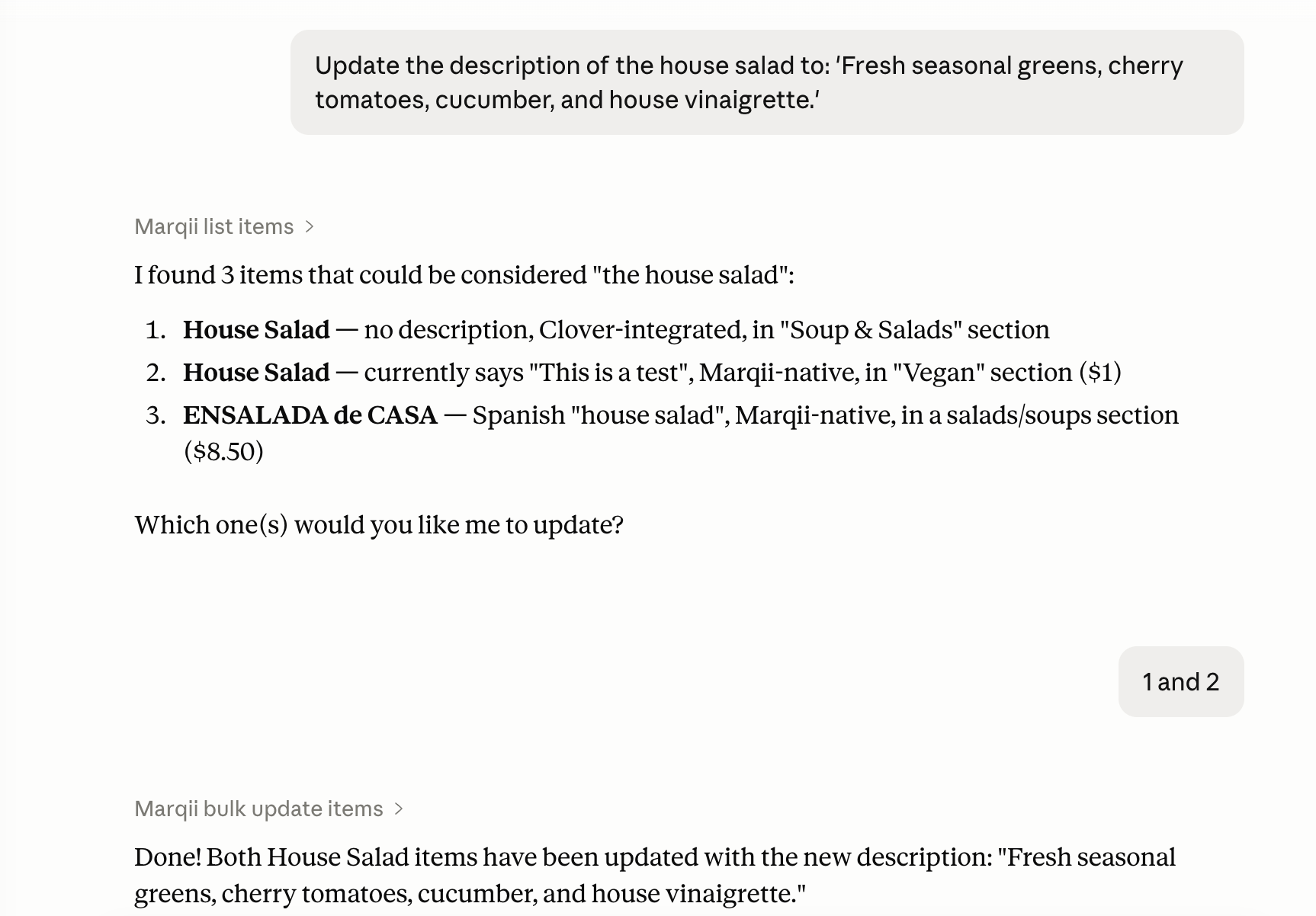
8. Update a Menu Item Description
Fresh copy for a new season? A tweak to better match your brand voice? You can update item descriptions right from chat.
Try this prompt:
"Update the description of the house salad to: 'Fresh seasonal greens, cherry tomatoes, cucumber, and house vinaigrette.'"
9. Add a New Menu Item
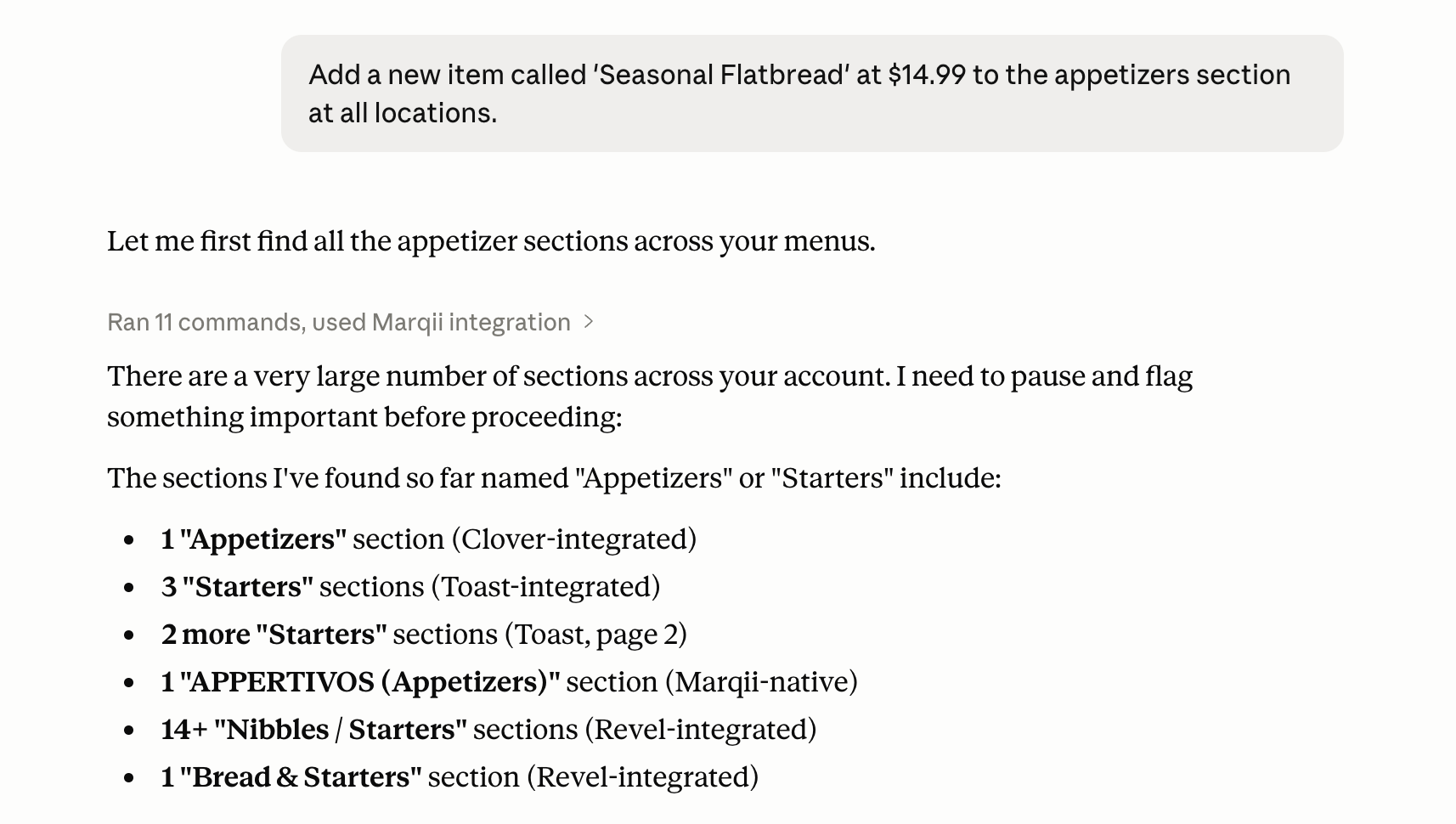
Launching something new? Get it added quickly without logging into the dashboard.
Try this prompt:
"Add a new item called 'Seasonal Flatbread' at $14.99 to the appetizers section at all locations."
10. Get a Quick Business Summary Before a Meeting
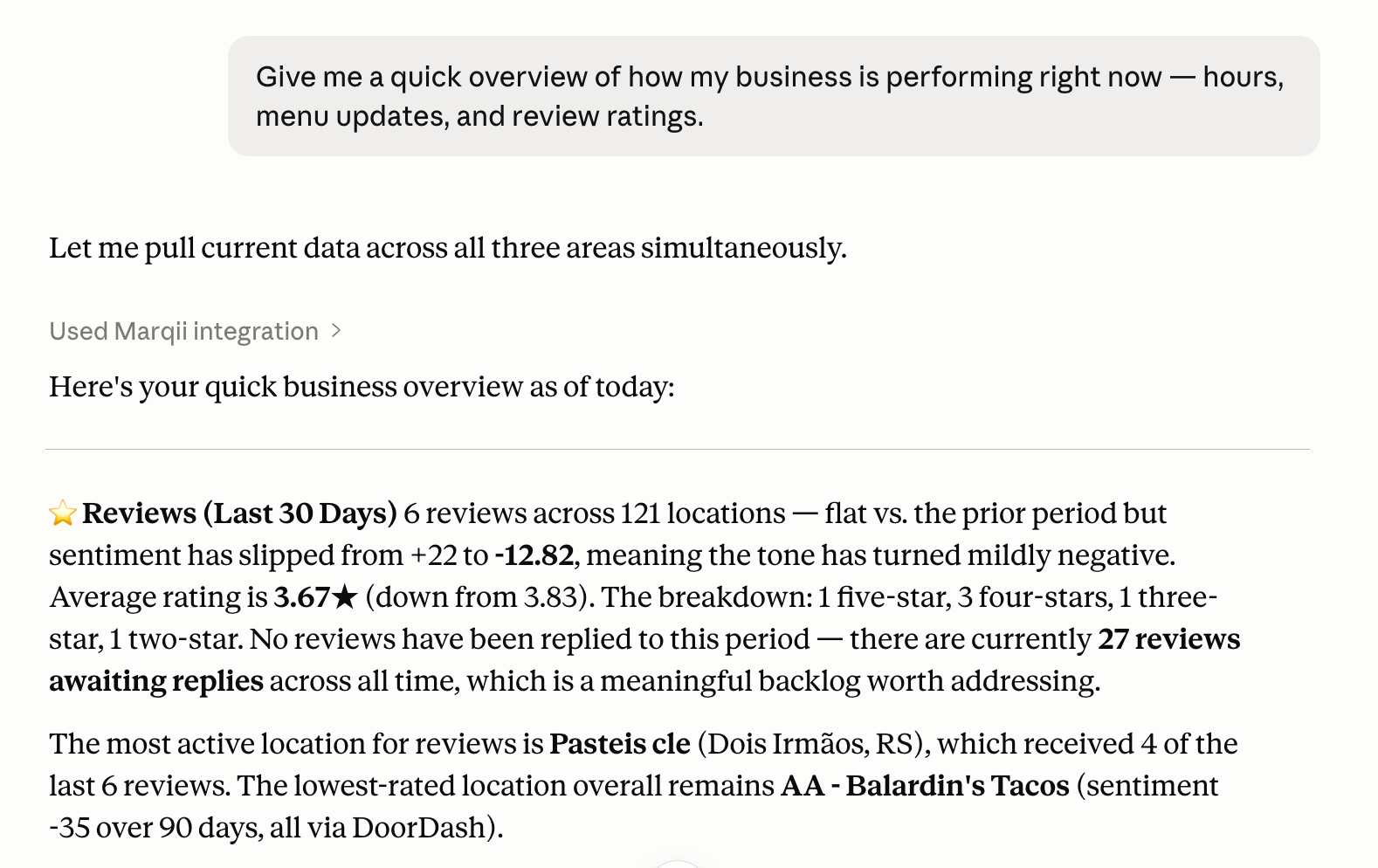
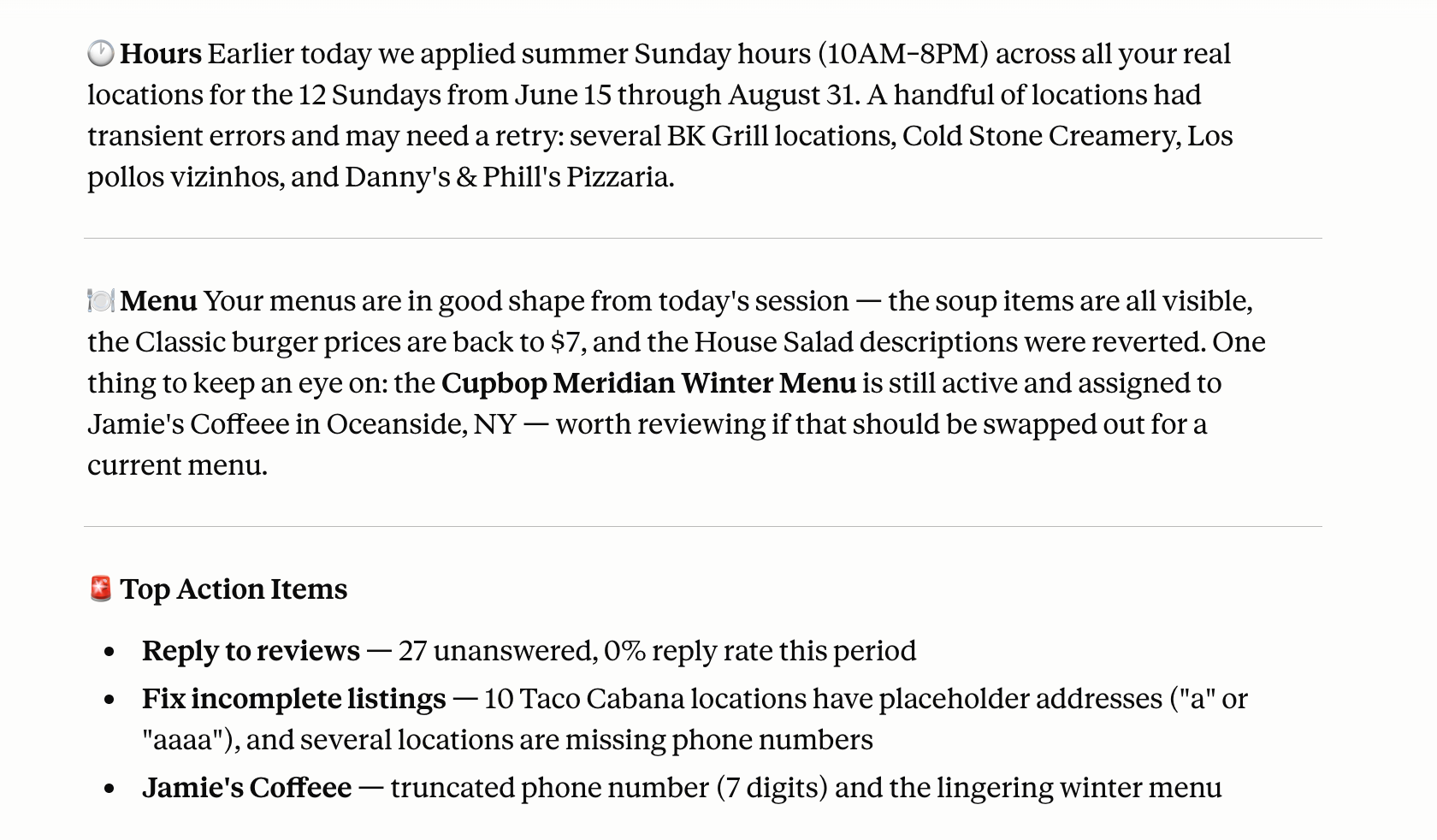
Walking into a team meeting or a call with an owner and need to get up to speed fast? Just ask.
Try this prompt:
"Give me a quick overview of how my business is performing right now — hours, menu updates, and review ratings."
In seconds, you have a snapshot of where things stand across every location.
A Few Things to Keep in Mind
- Some actions still require logging into Marqii directly. Account settings, passwords, responding to reviews, and user management can't be changed through an AI platform. For those, you'll still log in as usual.
- Your existing permissions carry over. If a team member doesn't have access to make certain changes in Marqii, those same restrictions apply when using AI.
- The AI will double-check big changes. If you ask it to do something large or unusual — like updating prices across every item — it will confirm with you before proceeding.
Ready to Try It?
Head to the Marqii Help Center and search MCP to find resources on how to get set up.
Stay tuned for Week 3 of the Marqii MCP Series, where we'll cover advanced use cases and how to maximize the benefits of combining your Marqii data with other tools.
Miss Week 1? Check out the blog here